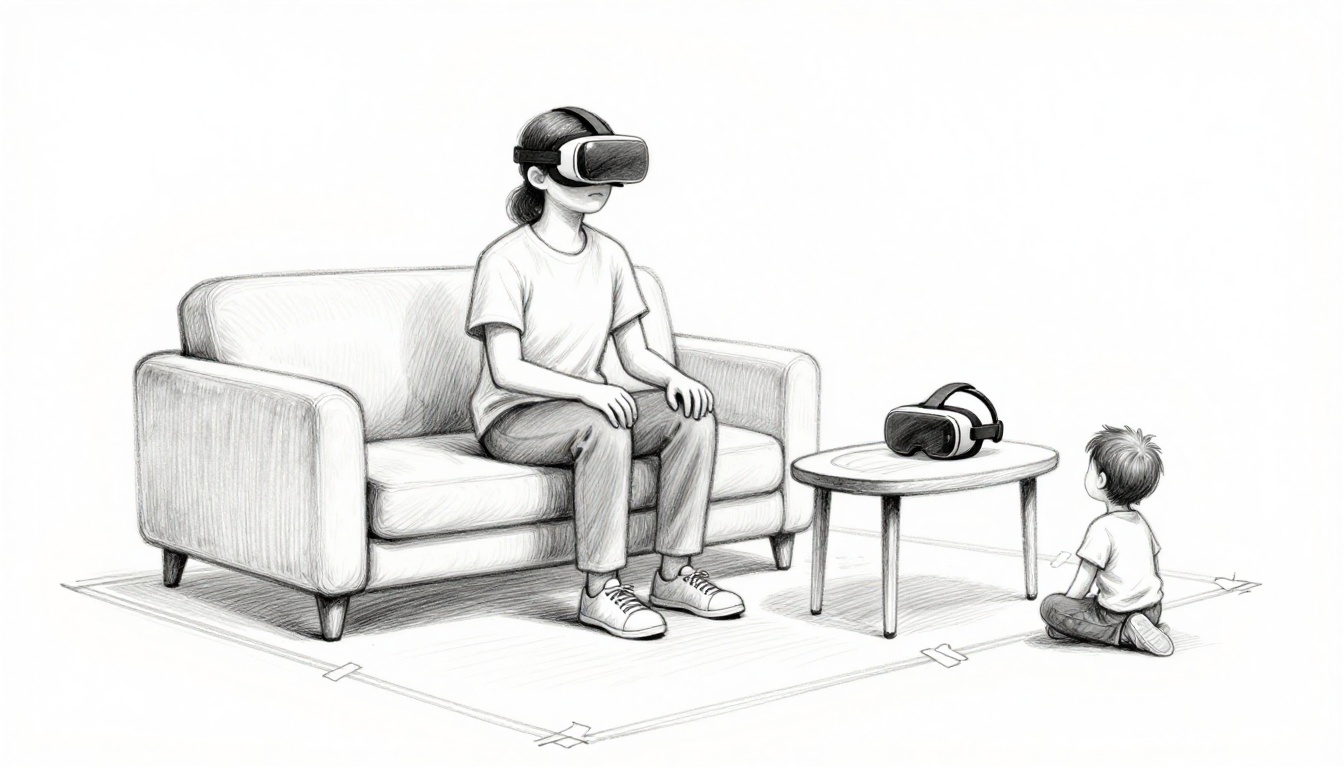
Stepping into VR feels like magic. One minute you’re on your couch, the next you’re in a new world. Still, VR safety matters, because a few common slip-ups can lead to dizziness, eye strain, or bumps you never saw coming.
The good news? You don’t need to be an expert to stay safe. With a simple routine, you can enjoy VR while reducing discomfort and staying aware of your space.
Use the tips below to handle the biggest risks first: health effects, safe play areas, kid rules, and headset care. These are grounded in manufacturer guidance (including Meta) and practical safety habits through March 2026, so you can play with confidence.
Beat Motion Sickness and Eye Strain Before They Ruin Your Fun
Motion sickness in VR is common. You may feel dizzy, queasy, or “off” because your eyes see movement while your body does not. That mismatch can happen fast, especially with intense motion games.
Start small. Think of VR like spicy food. If you jump in at full heat, your body protests. Instead, begin with short sessions, about 5 minutes, then build slowly over time.
Here are practical steps that tend to help many new users:
- Start with calmer games (teleport movement is often easier than smooth walking).
- Take 20 to 30 minute breaks to rest your eyes and body.
- Drink water, and skip heavy meals right before VR.
- Stop at the first sign of discomfort (don’t “push through”).
- Keep your headset fit comfortable, not tight.
Meanwhile, eye strain is another frequent issue. VR is close to your eyes for a long time. Even if the visuals look clear, your eyes can feel tired or sore.
A simple rule helps: during breaks, try the 20-20-20 habit (look about 20 feet away for 20 seconds). Also, use good room lighting. Avoid dark rooms that make your eyes work harder.
Motion sickness can also improve as you adapt, and some strategies really do matter. For a more detailed, research-focused breakdown of what helps, see VR motion sickness mitigation strategies.

Quick Fixes for Dizzy Spells
If you feel symptoms building, treat it like a warning light, not a challenge. First, pause your game and take the headset off. Then, sit upright and focus on something stable for a minute or two.
Quick fixes that often help:
- Gradual exposure: short sessions, then longer later.
- Seated play when possible, especially with movement-heavy apps.
- A “safe word” with friends or family, so anyone can pause fast.
- A buddy spot when you’re testing a new, more intense experience.
Also, pay attention to game movement options. Snap turning and teleport can reduce the feeling of motion mismatch.
If you feel dizzy, don’t negotiate with your body. Take the headset off right away.
Protect Your Eyes During Long Sessions
When your eyes feel strained, don’t just “push through.” Your vision needs rest between sessions.
Try these eye-friendly habits:
- Blink more often (VR can make you blink less).
- Adjust the headset so it’s secure without pressing hard.
- Avoid bright glare, and keep your room lighting steady.
- Choose comfort-rated games or settings when you can.
For fit, aim for clear visuals with minimal pressure around your face. If you feel hotspots, readjust the straps or lenses.
As of March 2026, there are no widely reported “eye-related” recall patterns that change day-to-day safety advice for most users. Still, always follow on-screen warnings and your specific model’s health guidance.
Set Up a Collision-Proof Space for VR Play
Even if VR feels “virtual,” your body still moves in real space. Most VR injuries happen when you hit furniture, trip over cords, or lose track of the edge of your play area.
A solid baseline is a clear 6×6 feet area. Remove furniture that can poke your legs or arms. Also clear trip hazards like cables, floor mats, and low tables.
Pets and stairs are a big deal too. Keep pets out of the room if you can. If stairs are nearby, add extra distance. Sharp items and wet floors should be out of play.
Built-in boundary tools help a lot. Meta devices use boundary features often described as Guardian, and other headsets offer similar edge alerts. When you set the boundary correctly, the system warns you if you drift too far.
Before each session, do a one-minute “space scan.” Look down, check the floor, and confirm the area still matches your boundary.

Mark Your Safe Zone with Tech Helpers
Boundary systems act like a digital fence. They can show visual warnings, and in some setups they can add audio or haptics.
To get the most from the tech helper features:
- Set the boundary in the exact room you’ll play in.
- Re-check it if you move furniture, rugs, or even a chair.
- Keep your room well-lit so sensors can track edges better.
- Update your headset software, since safety features improve over time.
If your play space is crowded, seated VR may be the best step. Many games and fitness apps work great while you stay in place.
Daily Habits to Keep Your Area Hazard-Free
The fastest way to avoid accidents is consistency. Every day (or before every session), do a quick reset:
- Move anything breakable off the sides.
- Tuck away charging cables and controllers’ charging cords.
- Keep lighting stable, so boundary detection works well.
- Avoid distractions like answering the door mid-session.
Also, if you’re playing with kids or new users, have a “watcher.” One adult can stay near enough to pause the session if someone drifts out of bounds.
VR Rules That Keep Kids Safe and Supervised
VR safety for kids is not about “good behavior.” It’s about limits, supervision, and setup. Because VR feels immersive, kids can forget where they are fast.
Manufacturer guidance generally puts minimum age rules around 10 or 13, depending on the device and account type. Meta’s approach includes parent-managed accounts for ages 10 to 12, while many systems recommend 13+ for normal account use. Always check your headset’s current rules for your model.
If you want a parent-focused guide straight from Meta’s safety page, see Meta Quest safety information for parents and pre-teens.
For privacy and safety, turn on parental controls. Block or limit social features. Keep kids in private settings when possible. Also, avoid “mature” spaces and chats, because online risks can appear quickly.
Finally, set family rules. For example: VR ends when the headset comes off, not when the story ends.

Age Limits and Watchful Eyes
In simple terms, supervision needs to be active, not passive. An adult should watch for discomfort and help manage time.
Key kid safety habits:
- Use shorter sessions first, then extend only if they feel fine.
- Enforce breaks even if they “want one more match.”
- Check for dizziness, headaches, or unusual eye fatigue.
- Keep the play area even clearer than you would for adults.
Also, teach pause controls early. Kids should know how to stop VR quickly. That includes knowing when to remove the headset and step out.
Local requirements can vary, so the “right” age depends on country rules too. In the US, follow the manufacturer minimum age and your local child safety guidance from trusted organizations such as NSPCC.
Maintain Your VR Headset for Peak Safety
Your headset can only help you if it stays in good shape. Safety includes hygiene, fit, and simple hardware care.
Clean the headset before and after use. If multiple people use the device, disinfect surfaces that touch skin. Use the cleaning method recommended by the manufacturer.
Also check storage habits. Avoid leaving the headset in hot sun or near heaters. Heat can damage parts, and sun exposure can create safety risks.
Keep batteries in mind too. Use good battery practices for controllers and replace failing batteries promptly.
Updates matter as well. If the headset prompts you to install safety or system updates, do it before long play sessions.

Hygiene and Storage Smarts
Hygiene is about comfort and health. VR is close to your face, so skin contact matters.
Do this every session:
- Wipe the parts that touch skin.
- Use gentle cloths and follow the manual.
- Let it air dry if needed, before storage.
Storage should be cool and dry. Keep it away from direct sun and high heat sources. Also, store it safely so it does not fall onto the lenses.
For model-specific safety warnings (including how to reduce injury and discomfort), read Meta Quest 3 health and safety warnings.
If you want a parent-friendly guide that brings these habits together, check a parent VR safety checklist.
Conclusion: Keep Sessions Fun, Not Risky
VR safety comes down to four habits: short starts, real eye breaks, a clear play space, and proper kid supervision. Add headset care, and you remove the most common causes of discomfort and accidents.
One strong takeaway stands out: setup and breaks prevent a lot of trouble. Even in enterprise VR programs, safety-focused training and clear rules have been linked to fewer incidents (often in the 30% to 43% range) when people follow the basics.
Next time you put on the headset, do a quick space check, start calm, and watch for signs early. What’s your best safety hack, the one you always use? Share it in the comments, and subscribe for more practical tech tips for safer play.