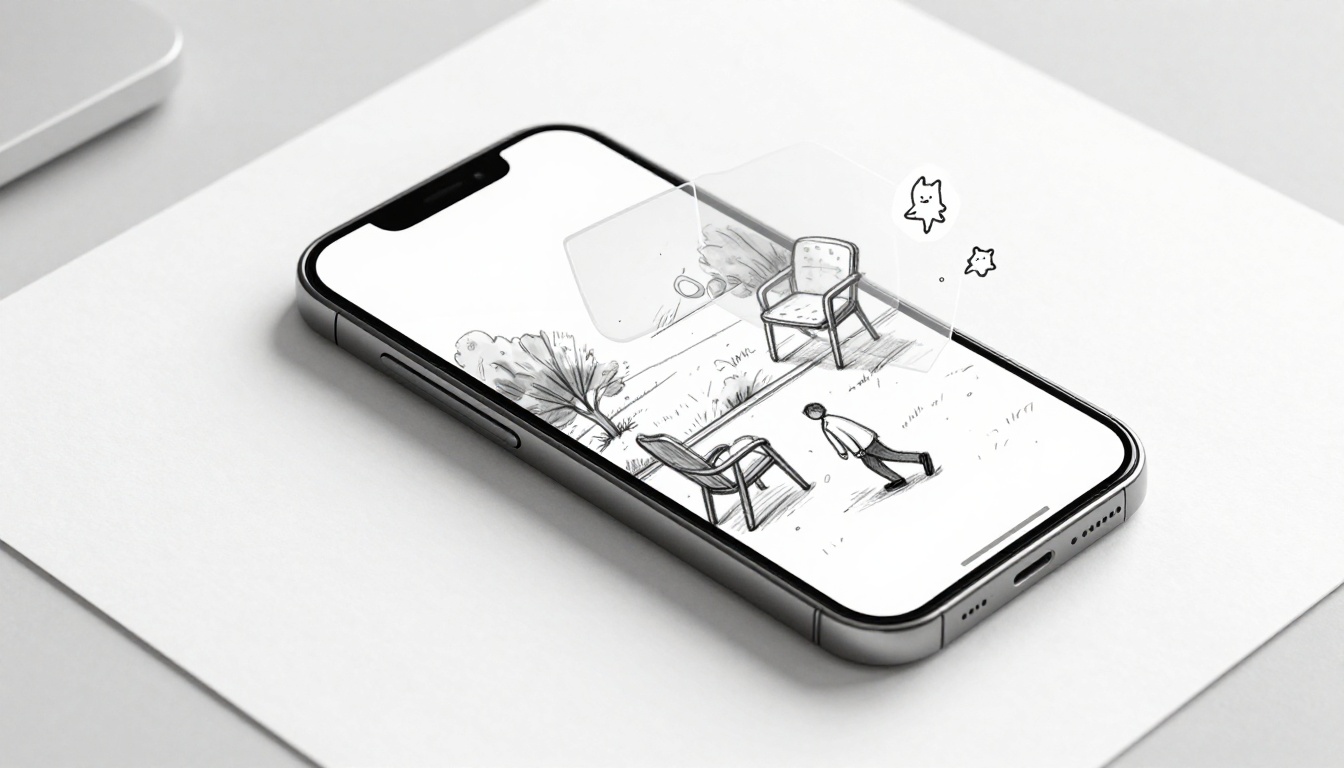
Picture this: you set your phone on the coffee table, aim the camera, and suddenly a chair shows up in your living room. Or you walk through the park, and tiny, “real” creatures appear around you. That’s augmented reality (AR) at work.
AR mixes digital stuff with your real world through your phone’s camera. In plain terms, your smartphone acts like a window that places virtual objects into your space. That means you can shop smarter, learn faster, and play in a more physical way than screen-only apps.
In 2026, AR apps on smartphone feel more common because they run well on everyday devices. You don’t need a headset for most apps anymore. You just need the right phone support and a few setup steps.
Let’s get your phone AR-ready today, so your next scan looks smooth and your first try does not feel like a guessing game.
See If Your Smartphone Can Run AR Apps
Before you download anything, do a quick compatibility check. AR apps need motion sensors and camera processing to keep virtual objects stable in the real world.
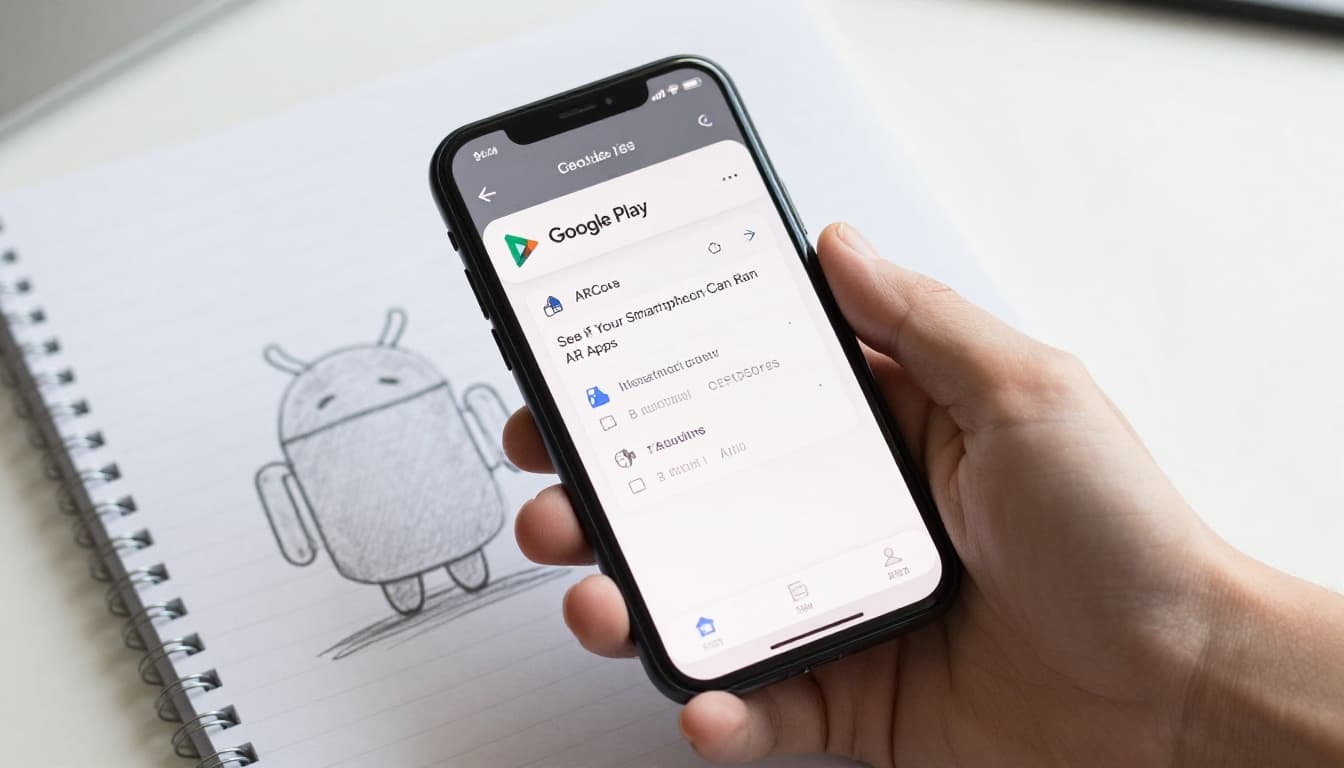
On Android, most AR apps rely on ARCore. On iPhone, many AR apps rely on ARKit. If your phone can’t run those, the apps may show an error, won’t install, or will track poorly.
Here’s the easiest path to verify support:
- Check for ARCore support (Android) by looking for ARCore or trying a known AR app.
- Check required capabilities (iPhone) using Apple’s device requirement info.
- Update your OS and app store apps (many “not compatible” messages disappear after updates).
- Restart the phone if you get a weird tracking issue right away.
For Android specifics, start with Google’s official supported devices page: ARCore supported devices on Google for Developers. It explains that supported devices pass a certification process for camera quality and motion tracking.
For iPhone, Apple’s App Store also uses required device capabilities to decide what runs. You can see the capability system on Apple Developer required device capabilities.
So, what phones work best? In most cases, if your phone is from the last several years, you’re in good shape. Many models from around 2017 onward run AR apps well, especially newer flagships.
If an AR app says your phone is not compatible, treat it as a signal. Don’t waste time troubleshooting app settings first.
Quick Tests for Android Phones
Android makes this part pretty simple. You just need to confirm ARCore support on your device.
Start with two quick tests:
- Download ARCore (if needed) from the Google Play Store.
- Try a simple AR tool, like a measurement or scanning app, then see if it runs.
If you get a “not compatible” message, your phone likely lacks the right motion tracking support or camera features. In that case, you can still enjoy some AR experiences, but many full ARCore apps may not work.
For phone models, newer Samsung Galaxy and Pixel phones tend to have the smoothest results. Google’s device list is the final word. Still, as a rough comfort zone, many people on older but still solid models from the Galaxy S7 to S8 range might get basic AR to work, depending on updates and app requirements.
If ARCore installs but tracking feels jumpy, fix it with basics: good light, a steady grip, and slower camera movement.
Next, iPhone users can follow the even simpler “required capability” approach.
Easy Checks for iPhone Users
iPhone support usually feels more “it works or it doesn’t.” Apple uses required capabilities so the App Store can block apps that won’t run well.
First, make sure you’re on iOS 11+ for many ARKit apps (many newer apps ask for later iOS versions). Then, check that your device can run common AR tools.
A practical approach:
- Update iOS before you test.
- In the App Store, search for AR apps that use measurement or camera placement.
- Install one free app first, so you avoid surprises.
Apple’s documentation about required capabilities helps explain why the App Store blocks certain apps on certain devices. That info lives here: Required Device Capabilities – Support.
In everyday use, phones like iPhone 6s and newer often cover basic AR needs, especially when the app is not overly demanding. For best results, newer iPhones generally track more stable surfaces and handle lighting better.
Now that you know your phone can run AR, it’s time to pick your first apps.
Download and Launch Your First AR Apps
Once you confirm compatibility, your goal is simple: install one AR app and get it running in under five minutes.
Start with a mainstream AR app. Those apps usually handle setup well. They also use stable tracking methods, so your first session feels fun instead of frustrating.
When you install an AR app, pay attention to permissions. Most AR apps need camera access. Some may also use motion sensors automatically. If you deny camera permission, AR won’t display anything.
Then do a quick launch routine:
- Open the app.
- Point your camera at a clear surface.
- Move slowly and follow on-screen prompts.
- Try one action (place an object, start a scan, or trigger an effect).
You usually do not need extra hardware. Most phone AR runs on the phone’s sensors and camera processing.
Also, keep expectations realistic. AR is sensitive to your environment. If your room is dim or your surface is cluttered, tracking may struggle.
One more practical note: AR can use more battery and data than normal camera apps. If you plan to test multiple apps back-to-back, bring a charger or keep sessions short.
Top Beginner Picks Like IKEA Place and Pokémon GO
If you want quick wins, choose apps that are designed for first-time users. In 2026, many popular beginner apps still follow the same idea: give you a simple camera view, then guide you.
Here’s a starter set that tends to work well for new AR explorers:
| App | Best for | Works on |
|---|---|---|
| IKEA Place | See furniture fit before you buy | iOS, Android |
| Pokémon GO | Catch AR Pokémon outdoors | iOS, Android |
| InkHunter | Try tattoo designs on your skin | iOS, Android |
| Star Walk 2 | Spot stars with your camera | iOS, Android |
| Qlone | Scan and view 3D objects | iOS, Android |
These apps are popular because they start fast. You don’t need to learn complex controls. You point the camera, then you react.
If you want toy scanning apps, look for apps that use “scan this object” workflows. Many newer AR toy experiences let you scan a toy package, then spawn animated content on top of it. That makes AR feel like a game, even when you just want something light and fun.
For a bigger list of AR apps, you can browse curated options like Best Augmented Reality Apps of 2026. Use lists like that to discover, then test one app you’re curious about.
If you want help finding free options, check comparison pages like best free AR software and tools. That’s useful when you want alternatives, not just the most famous names.
Bonus Fun Apps for Stars and Selfies
AR is not only for shopping and games. It’s also great for quick fun with the camera.
Try “sky mapping” apps if you like looking up. Tools like Star Walk 2 help you match what you see to the sky overhead. Then you can point your phone at the night and feel like you’re doing science with zero setup.
For selfies, AR filters can be the easiest entry point. Apps with face effects often let you see results immediately. You don’t need perfect surfaces. You just need your face and decent lighting.
If you want 3D scans, Qlone-style apps are fun. You can scan an object and view it from different angles. That’s a nice step up from filters, because it feels more “real” than a simple effect.
As you explore, remember a key pattern: the best beginner AR apps feel guided. They show you what to scan, where to point, and what to do next.
Master AR Tricks for Smooth Fun Every Time
Want your AR session to look steadier? Slow down and set up your shot like a photographer.
AR apps track the world by finding features in the camera view. When you help the app, it helps you back.
Try these basics:
- Use bright light. Even indoor lighting can help.
- Point at a flat surface when placing objects.
- Keep your phone steady and move slowly.
- Clear clutter from the camera view.
- If an app lags, close other apps first.
If you want an easy comparison, think of AR like balancing a marble on a moving plate. Fast movement makes it slide. Slow movement keeps it stable.
Also update often. When you update your phone OS, your AR framework and permissions can run more smoothly. When you update the AR app, you get fixes for tracking bugs and performance issues.
One more practical tip: lower your screen brightness for longer sessions. Your battery will last longer, and heat stays lower.
Most “AR glitches” come from lighting and movement, not from your phone being “bad.”
If you enjoy drawing, look for AR sketch apps that let you practice over real surfaces. Drawing tools with camera placement make your phone feel like a creative pad. Then you can share screenshots with friends and compare results.
Handle Common Hiccups Without Stress
AR can get weird, even when your phone is supported. That’s normal. Your job is to spot the common causes.
Here are frequent issues and what to do:
- Drift (the object slides away): move slower, re-center the camera, and try again on a flatter area.
- Dark room problems: turn on a lamp or move near a window. Better light usually fixes tracking.
- Overheating or lag: pause for a few minutes. Long AR sessions heat up the phone.
Sometimes the camera view looks fine, but the app still fails. In those cases, do the simplest fix: quit the app and reopen it. If that doesn’t work, restart your phone.
Also, check storage. If your device is low on space, camera apps can stutter. Free up a little space and try again.
If you keep seeing the same error message, reinstall the AR app. Many tracking issues come from outdated app files.
Once you get through your first hiccup, it gets easier. Then you’ll start noticing what each app is best at, whether that’s furniture try-ons, toy scanning, star mapping, or playful filters.
Ready to Level Up Your AR Adventures?
That first AR moment, the “wait, that’s in my room” second, is hard to forget. To make it happen more often, remember the simple flow: check your phone support, install one beginner AR app, then use good light and slow movement.
Next time, pick one app that matches your mood. Want something practical? Try furniture placement. Want something social? Use AR filters or simple scans. Want something outdoors? Pokémon GO style games keep it active.
Pick one AR app today, try it for five minutes, and then share what worked best. What did you scan or place first?